Summary
There are two extreme types of deployments, one is completely on premises, and the other is completely cloud based. Both have pros and cons, depending on the requirements, there is a balance of function distribution between cloud and office. As a result, many combinations are possible in different situations.
In the following setup, two workstations and 1 remote access is configured. Most of the time works are to be done from workstations, while remote access is supposed to be anywere on the Internet including home and overseas.
On-premises
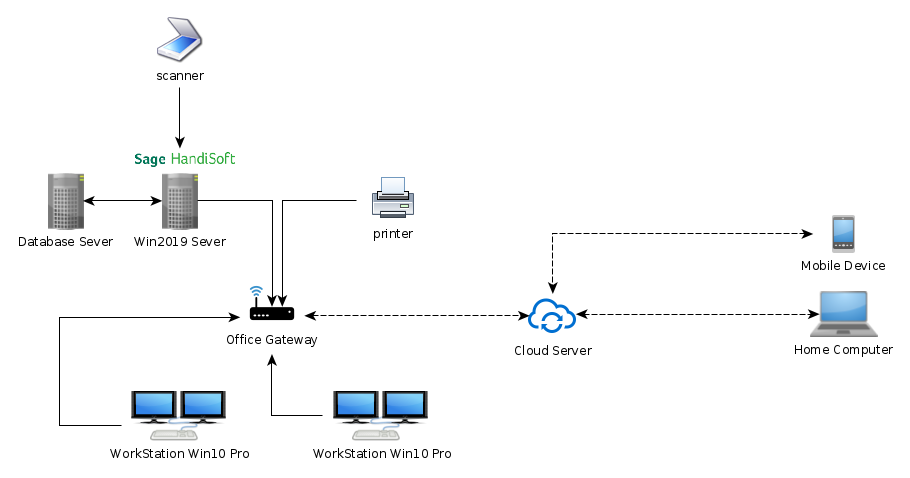
In the above setup, office owners have everything in their reach. It’s an isolated environment immune to the Internet outage. Access locally is very fast, operation is nearly instant in most cases. People can touch their data with their finger tips. It’s ideal for busy offices demanding super speed processing especially across departments, normally big companies choose this setup to facilitate their inhouse business process.
The drawback is also plenty. Compared to fast local access, remote access will be bottlenecked by the office gateway, which is very slow given today’s broadband uploading speed, unless your company have dedicated lines. It will be even worse when there is bulk document transfer or multiple users trying to access at the same time. Device needs to be well guarded and maintained. An accidental insert of USB stick may cause virus spread into the document server. A dedicated IT team is normally necessary for quick troubleshooting and day-to-day running. Without proper maintenance, systems tends to experience jitters and then big disaster in the long run. Regular checks and system maintainance like a CAR is absolutely necessary.
Balanced
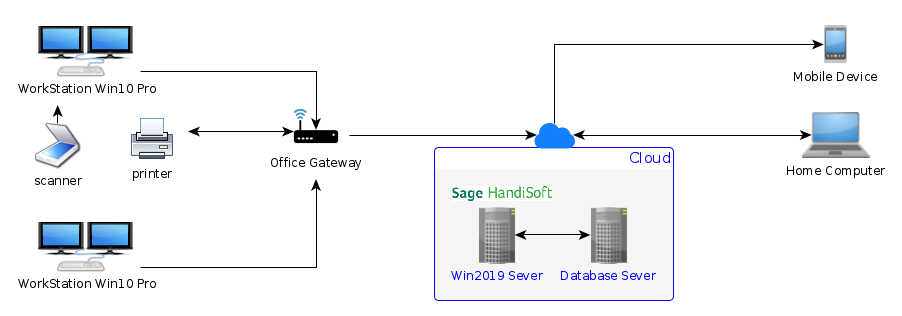
A balanced setup, put workstation inside office while put server on cloud, preferrably private cloud. It gives enough power for office clerks while provide decent functionality for mobile client. Since quite some functions lives in the office computer, mobile client normally can only do very limited operations, such as document approval, uploading, archiving.
Completely Cloud
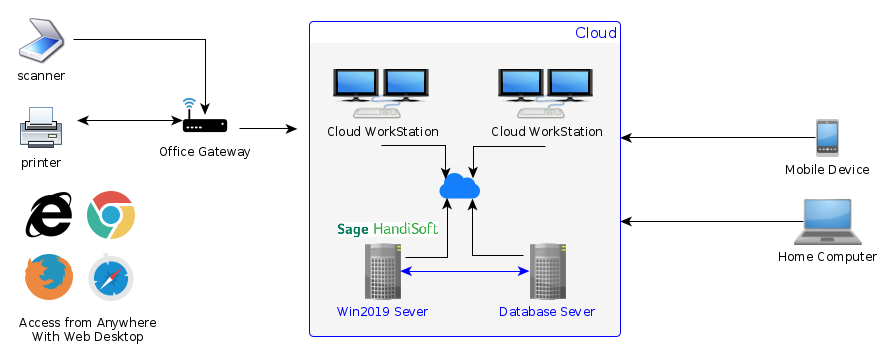
This is the future of cloud based computing, people do not need any desktop devices, even when they are on the go. There are browser based desktop accessible from anywere of the Internet, and the desktop can fullfil any jobs normally performed from an office workstation.
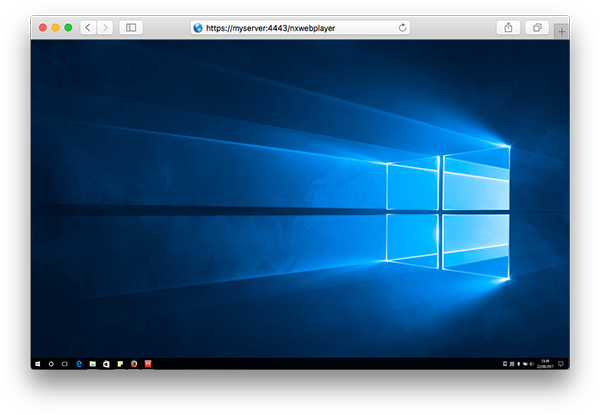
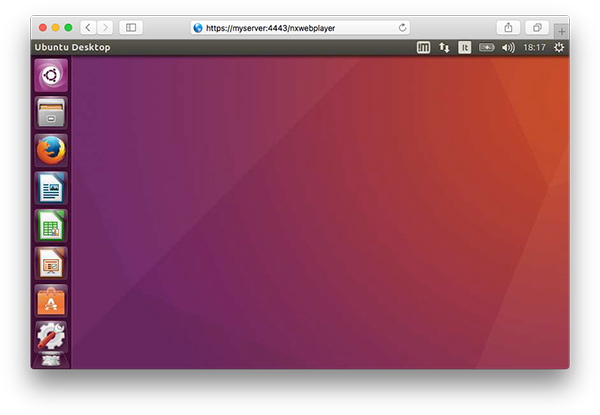
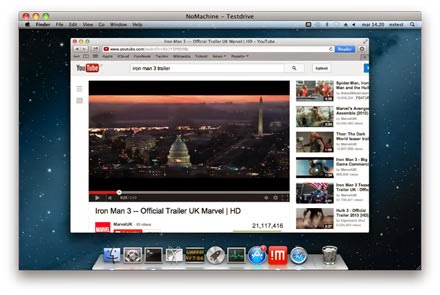
The above pictures shows how people access a desktkop computer located in the cloud. The computing power is at the remote side. A not so powerful computer with a good Internet connection is enough for very complex jobs. Maintainance of IT infrastructure is at the cloud side. Normally users only need to pay a monthly fee.
The catch here is that public cloud may have problems when switching to other vendors, for example, if you have data in XERO and one day you want to move it to QuickBook, there will be lots of quirks and gotcha. If you stop to pay XERO, you risk loosing all of your data.
On the other hand private cloud provide all the benefits of public cloud while still give users the flexibility to move around. In general, people choose private cloud over public cloud, if their budget allow them to do so.
Guideline about cost
- 2 workstations – $900 – $1500
- 4 monitors – $600 – $1200
- 1 gateway – $100 – $900
- 2 win10 pro $620
- 1 Handisoft license BYO
- 1 Cloud Server Handisoft $200/mth
- 1 Cloud Server MSSQL $190/mth
- One time setup fee $900
- Data Migration $2000+
Other Office Facilities
In addition to computers and servers, Oiffce need facilities like phone, website, scanner, printers. We also provide packaged price for all these products with a free Brother MFC-1810 Laser Printer. If you subscribe our enterprise phone plan for 3 years.
| Device | Description | Price |
| Office phone | Softphones for making phone calls (together with plan) | $0 |
| Office phone | Yeahlink T42G - RF | $132 |
| Call Plan | unlimited incoming with IVR, call divert, voice to email | $15/line/mth |
| Call Plan | unlimited national (in/out) | $30/line/month |
| 1800 number | 100minutes landline + 40minutes Mobile incoming call, overflow to email | $20/mth |
| Local number | Sydney, Melbourne, Perth, Brisban phone number | $0 |
| Printer | OKI MC363dn All-in-One Color Laser Printer | $410 |
| Scanner | Canon DR-C225II Sheet-Fed Scanner | $490 |
| Website Setup | Professional website with page editor - create page like this without programming | $900 |
| Web Hosting | Sydney data center, CPanel, unlimited email accounts | $15/mth |
- Please note that our phone plan has unique support for automatic call-to-invoice function and phone recording