Skip to content
biukop.com 1800 181 522

MacBook air  Connects to Sony KD55x7000D as a second monitor for the Microsoft RDP client.

Hey Jasimine,Nice to e-meet you

Welcome to try the following guide on how to connect your Sony TV with your MacBook air laptop, so that the Sony big screen can serve as a second monitor. It can greatly boost your productivity, and sometimes, increase your pleasure when working.  This article is better to read on a big screen.

MacBook Air and Sony55X7000D

Step 1 Identify USB-C Ports

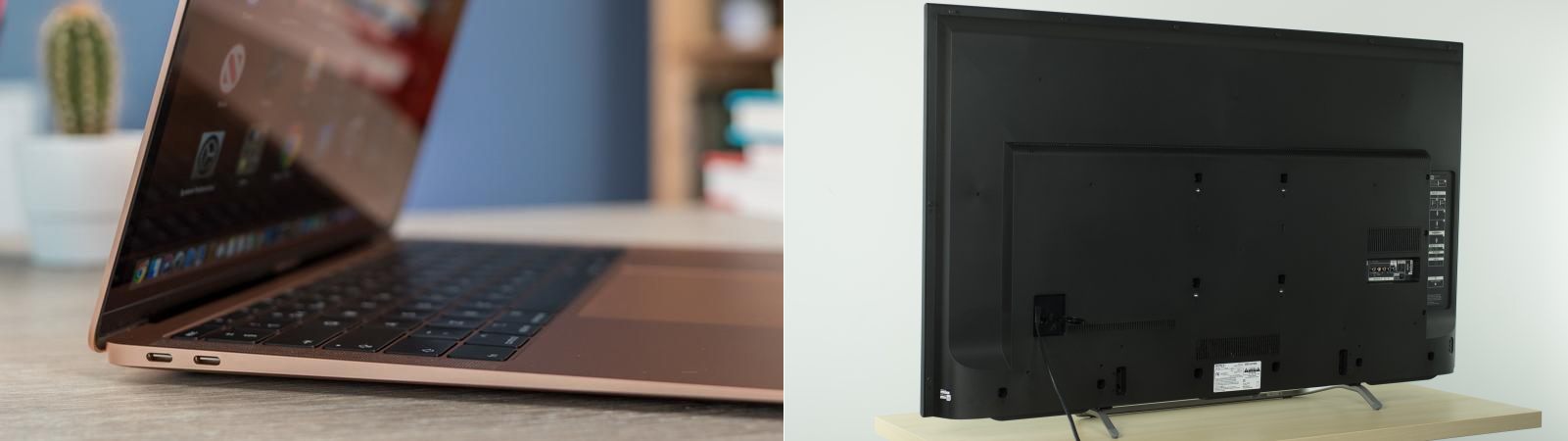
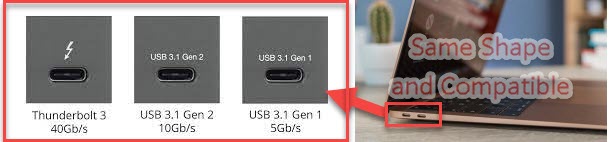
MacBook Air has two USB-C or Thunderbolt, for fast data transfer and extend an extra monitor. They have exactly the same shape and can be used interchangeably.  However, the cable type is important, as the same port can be used for different purposes.

MacBook Air USBC port
Step 2 Identify HDMI Port

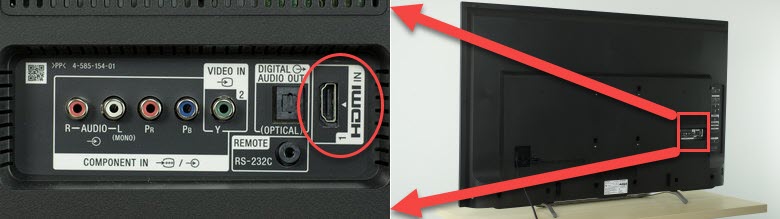
HDMI is commonly provided by modern TV  and intelligent appliance for display signals. different versions carry different quality video, audio or network signals. Sony TV has 3 HDMI ports on the side, and on the back.  They should be marked with HDMI-IN. The following picture shows the HDMI on the back.

Sony HDMI ports

Step 3 Prepare USB-C to HDMI cable

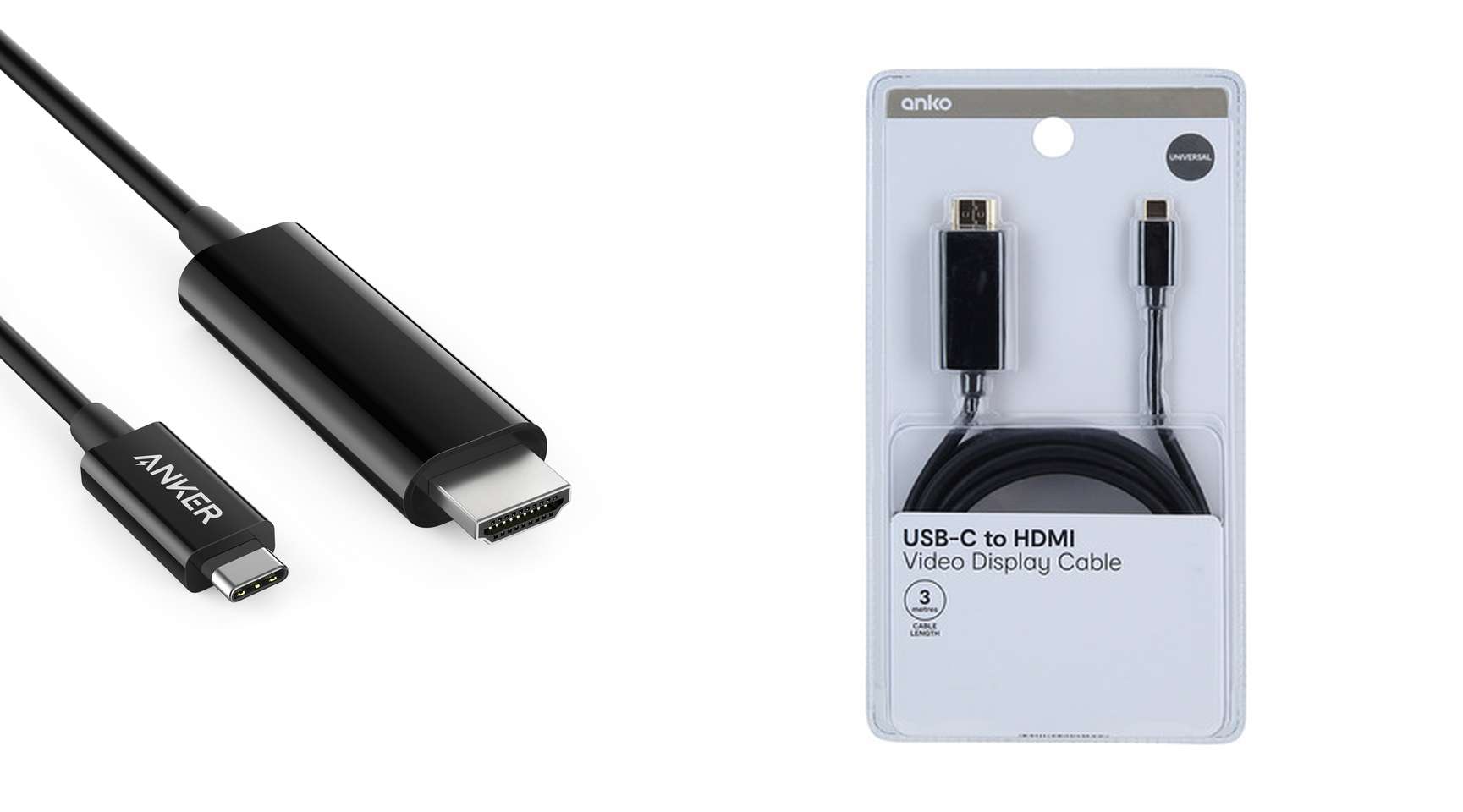
You need a USB-C to HDMI conversion cable to connect MacBook Air with Sony TV.  Please be aware that, the cable has to be clearly specified as a “VIDEO” Cable,  because cables with the same shape may have different functionalities. Fortunately, VIDEO cable is the most popular type.

USBC to HDMI Video Cable

Step 4 Set up the displays as an extended desktop

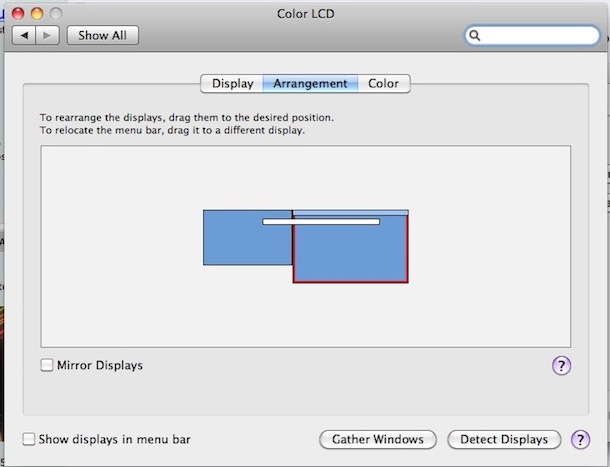
You can arrange your displays in any configuration to create an extended desktop. For example, you can set your displays side-by-side to create one large continuous desktop.

  1. On your Mac, choose Apple menu  > System Preferences, click Displays, then click Arrangement.
  2. Follow the onscreen instructions.

Step 5 Config Microsoft RDP

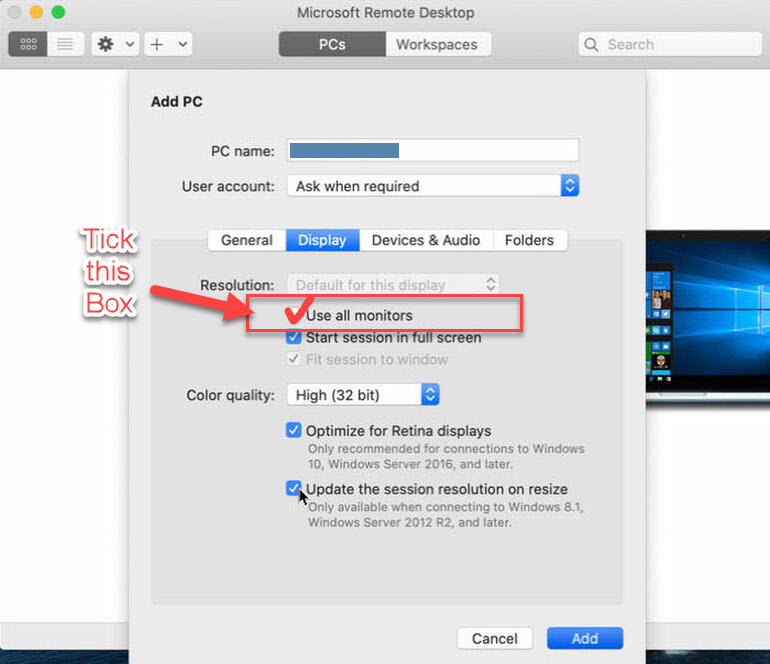
Open Microsoft Remote Desktop, and edit the connection preview as shown below. Please make sure you tick the “User all Monitors”.  It’s better not to touch any other configurations. 

If you encounter any problems

With fingers crossed, you should be able to use a two-screen workspace from now on. Nevertheless, if you encounter any issues, please do not hesitate to contact me.

Back To Top